


In this documentation is explained how to use Elegant Gallery Plugin.
First step Installing the plugin. In joomla backend go in System / Install / Extensions - Upload Package File . Select the Browse for file button and select the file plg_e_gallery.zip on your local computer or drag and drop the file plg_mx_e_gallery.zip from your file manager.
After successful installation go in System / Plugin and click in "Content - Mx Elegant Gallery".
General Info.
Galleries Root Folder, set the default folder path for galleries (e.g., 'images/galleries/'). Create all gallery folders under this path. By default is 'images/galleries/'. If your main gallery folder is in a different location, change this path accordingly.
Shortcode - by default, the system uses {mxegallery}. So by default the shortcode to use in articles is {mxegallery}my-folder{/mxegallery}. To maintain compatibility with other gallery plugins, enter their shortcode here, such as {gallery} or {portfolio}. In this case shortcode to use in articles it will be {portfolio}my-folder{/portfolio}
Appearance.
There are four styles - classic, isotope, portrait, and creative. Put the settings in any styles as you prefer. There is not any limitations.
Settings.
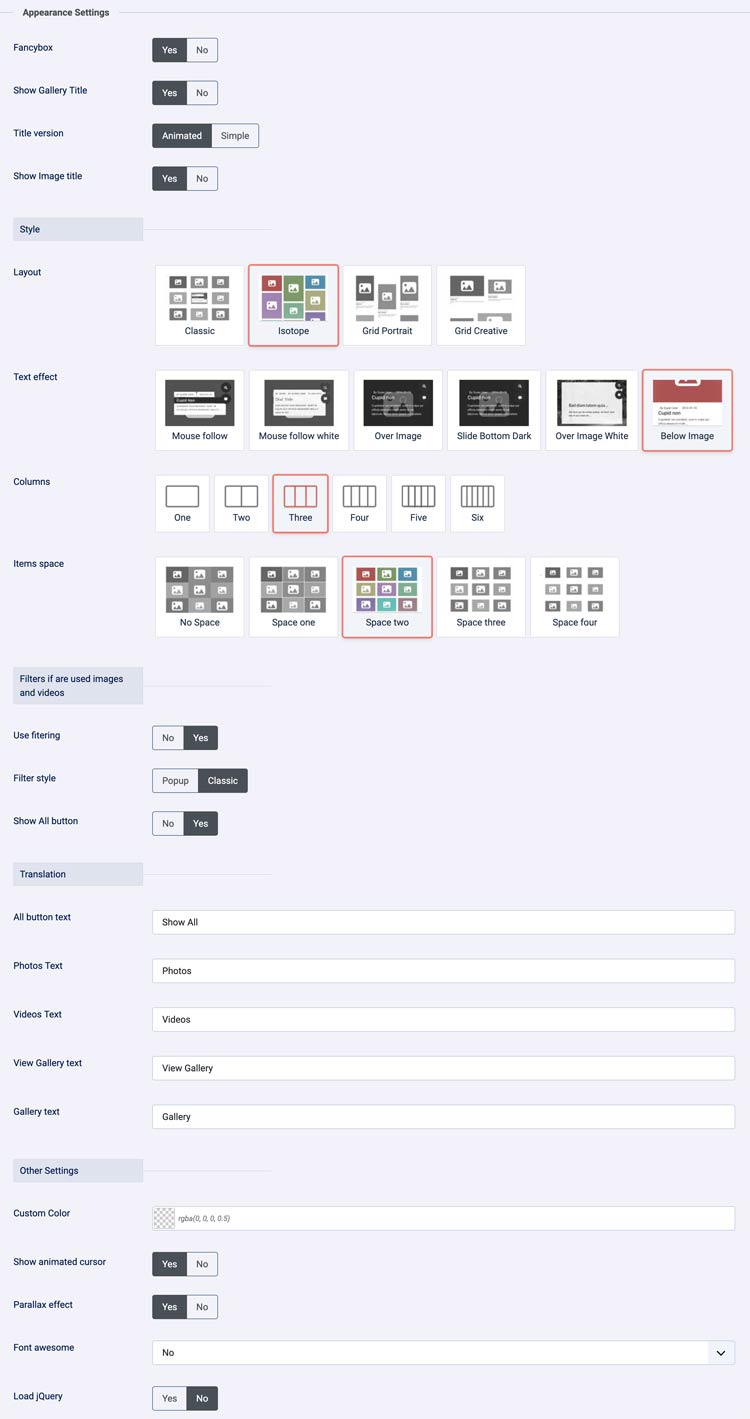
- Fancybox - Yes/No
- Show Gallery Title - Yes/No
- Title version - Animated / Simple
- Show Image Title - Yes/No
- Styles - Classic / Isotope / Portrait / Creative
- Tittle effects - Mouse follow Mix / Mouse follow White / Over Image Dark / Slide Bottom Dark / Over Image White / Below Image
- Columns - one / two / three /four / five / six
- Items space - None / Space One / Space Two / Space Three
- Use Filtering - Yes / No
- Filter Style - Popup / Classic
- Show All button - Yes / No
- All button text
- Photos Text
- Videos Text
- View Gallery text
- Gallery text
- Custom Color
- Parallax Effect - Yes / No
- Show animated cursor - Yes / No
- Font awesome - Yes / No
- JQuery - Yes / No
Use shortcode in articles.
Normal shorcode to use is {mxegallery}my-folder{/mxegallery}
As there are four styles we create Dynamic Parameter Handling:
Shortcode parameters (e.g., columns, space, layout, effect and filter ) are dynamically processed, allowing users to override default plugin settings directly within the shortcode. For example: {mxegallery 4 2 isotope over 1}my-folder{/mxegallery} sets columns 4, items space 2, applies the 'isotope' layout, applies 'over' text effect, applies filter and targets the my-folder directory.
When using filters, you only need to set the value to 1 if the folder contains both images and videos. Otherwise, you can leave it at 0.
Every parameter has the option below
| mxegallery | columns | space | layout | effect | filter |
| Number from 1 to 6 | Number from 0 to 4 |
classic |
inside |
0 |