


In this documentation is explained how to use Photo Gallery Plugin.
First step Installing the plugin. In joomla backend go in System / Install / Extensions - Upload Package File . Select the Browse for file button and select the file plg_mx_photo_gallery.zip on your local computer or drag and drop the file plg_mx_photo_gallery.zip from your file manager.
After successful installation go in System / Plugin and click in "Content - Mx Photo Gallery".
Settings.
Galleries Root Folder, set the default folder path for galleries (e.g., 'images/galleries/'). Create all gallery folders under this path. By default is 'images/galleries/'. If your main gallery folder is in a different location, change this path accordingly.
Shortcode - by default, the system uses {mxgallery}. So by default the shortcode to use in articles is {mxgallery}my-folder{/mxgallery}. To maintain compatibility with other gallery plugins, enter their shortcode here, such as {gallery} or {portfolio}. In this case shortcode to use in articles it will be {portfolio}my-folder{/portfolio}
Appearance.
There are five styles - Slider, Carousel, Gallery, Show, List. Put the settings in any styles as you prefer. There is not any limitations. Slider will show the items in slider, Carousel will display them in Carousel and Gallery in portfolio gallery mode - classic or isotope theme. Show style will change photos on mouse over the image title.
Slider.
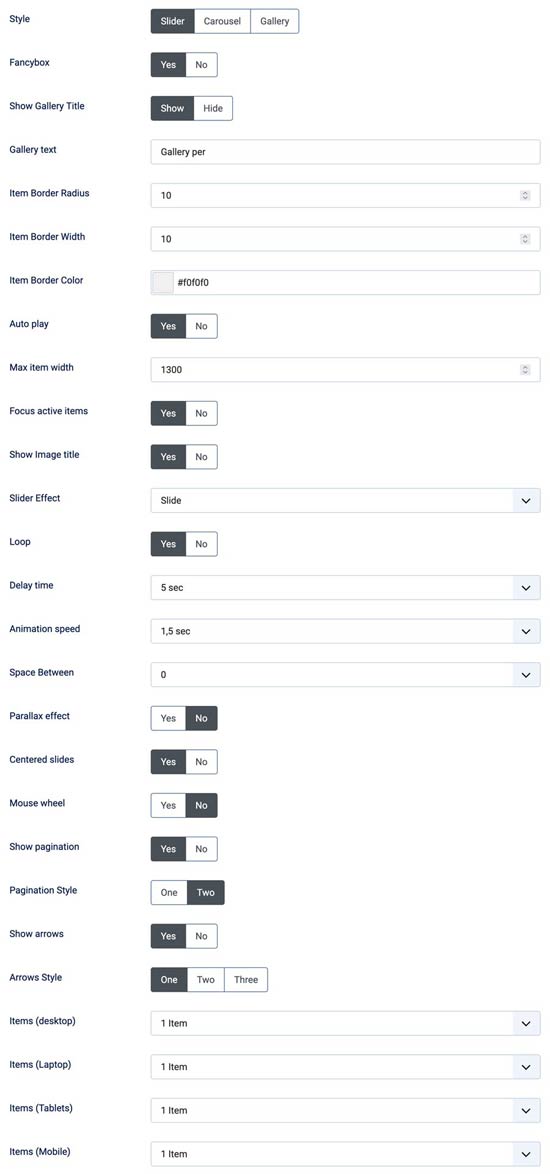
Slider Settings
- Fancybox - Yes/No - ( Choose whether to display gallery in Fancybox )
- Show Gallery Title - Yes/No ( Choose whether to display the title above the gallery )
- Gallery text intro
- Item Border Radius
- Item Border Width
- Item Border Color
- Auto play - Yes/No
- Max item width
- Focus active items - Yes/No
- Show Image title - Yes/No
- Slider Effect - Fade / Slide / Coverflow / Flip / Cube
- Loop - Yes/No
- Delay time
- Animation speed
- Space Between
- Parallax effect - Yes/No
- Centered slides - Yes/No
- Mouse wheel - Yes/No
- Show pagination - Yes/No
- Pagination Style - One / Two
- Show arrows - Yes/No
- Arrows Style - One / Two / Three
- Items (desktop) - one to ten ( for slider and coverflow )
- Items (Laptop) - one to ten ( for slider and coverflow )
- Items (Tablets) - one to ten ( for slider and coverflow )
- Items (Mobile) - one to ten ( for slider and coverflow )
Carousel.
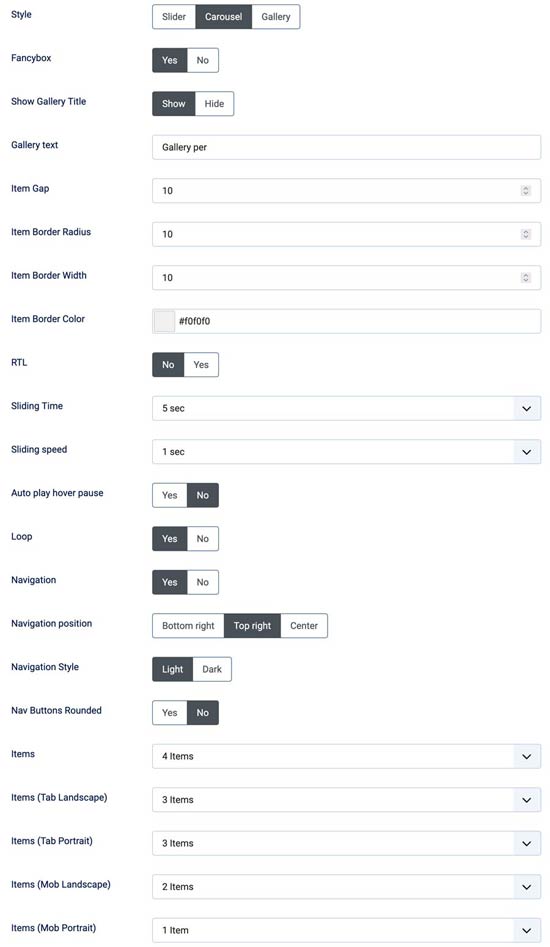
Carousel Settings
- Fancybox - Yes/No
- Show Gallery Title - Yes/No
- Gallery text intro
- Item Border Radius
- Item Border Width
- Item Border Color
- RTL - Yes/No
- Sliding Time
- Sliding speed
- Auto play hover pause - Yes/No
- Loop - Yes/No
- Navigation - Yes/No
- Navigation position - Bottom Right/Top Right/Center
- Navigation Style - Light/Dark
- Nav Buttons Rounded - Yes/No
- Items (desktop) - one to ten
- Items (Laptop) - one to ten
- Items (Tablets) - one to ten
- Items (Mobile) - one to ten
Gallery.
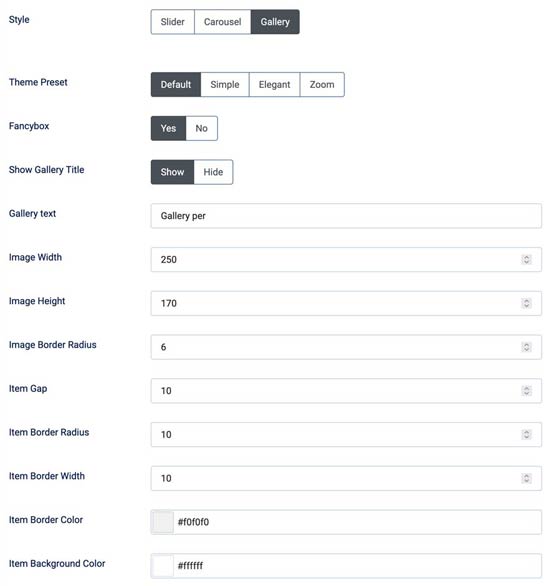
Gallery Settings
- Themes - Classic / Isotope
- Fancybox - Yes/No
- Show Gallery Title - Yes/No
- Gallery text intro
- Columns - one / two / three /four / five / six
- Custom Color
- Items space - None / Space One / Space Two / Space Three
- Tittle effects - Mouse follow Mix / Mouse follow White / Over Image Dark / Slide Bottom Dark / Over Image White / Below Image
- Show animated cursor - Yes / No
- Item Border Width
- Item Border Color
Show.
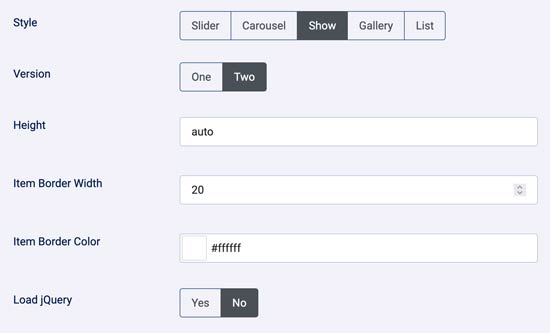
Show Settings
- Fancybox - Yes/No
- Show Gallery Title - Yes/No
- Gallery text intro
- Height
List.
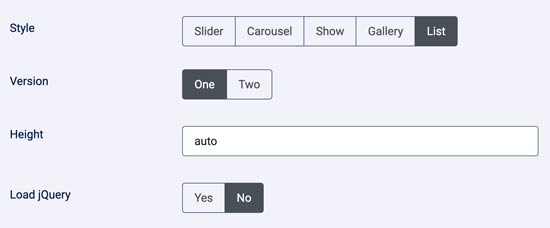
List Settings
- Fancybox - Yes/No
- Version - One / Two
- Height
- Jquery - Yes/No
Use shortcode in articles.
Normal shorcode to use is {mxgallery}my-folder{/mxgallery}
As there are four styles we create Dynamic Parameter Handling:
Shortcode parameters (e.g. style, height, columns, space, border width, theme and effect) are dynamically processed, allowing users to override default plugin settings directly within the shortcode. For example: {mxgallery slider 500 4 1 5 isotope coverflow}my-folder{/mxgallery} sets style slider, custom item height (500), 4 columns (for gallery style only), space 4 between items (for gallery style only), border width 5, applies the "isotope" theme (for gallery style only), put in slider style "coverflow" effect, and targets the my-folder directory. Effect will apply only to slider style.
Every parameter has the option below
| mxgallery | style | height (slider,carousel & show style) | columns (gallery style) | space (gallery style) | border width | theme (gallery style) | effect (slider style) |
|
slider |
Number of your choice. To have the original photo size write auto |
Number from 1 to 6 | Number from 0 to 4 | Number of your choice |
classic |
fade |